Using Fotobogen
Everything is done in a web browser. Your site is at its address; the admin is at the same address followed by /admin.
The admin
Log in at /admin with the account you made during setup. You arrive at Overview, which shows the site and its server at a glance. Every other page is in the menu down the left side (behind a Menu button on a phone):
| Page | What it is for |
|---|---|
| Upload | Adding photographs |
| Library | Every photo: order, hide, delete, edit, copy links; and the trash |
| Albums | Named sets of photos |
| Skins | How the public site looks, and light or dark |
| Modules | Looks applied to photos: film, frames, watermark |
| Site text | The site's name and every word on it |
| Icon and logo | The picture in the browser tab, and a logo in place of the name |
| Search and sharing | What search engines and shared links show |
| Visitor statistics | Counting visits with a service you choose; off to begin with |
| Pages | Pages of words (About, Contact) and links of your own in the site's menu |
| Embed on another site | A slideshow of your photos for other sites to show; off to begin with |
| Settings | Title, layout, privacy, licence, slideshow |
| System | Backup, restore, version, updates |
| Webhooks | Telling another program when a photo is added, published, or deleted |
| API tokens | Letting a script or another program upload |
| Two-step login | Asking for a code from your phone after the password; off to begin with. More about it. |
A login lasts 30 days from when you last used it, and never more than 90 days from when it was made. Five wrong passwords in 15 minutes from one address locks that address out for the rest of the 15 minutes.
Uploading
Choose Upload, then pick files or drop them on the page. Each file shows its progress and what became of it.
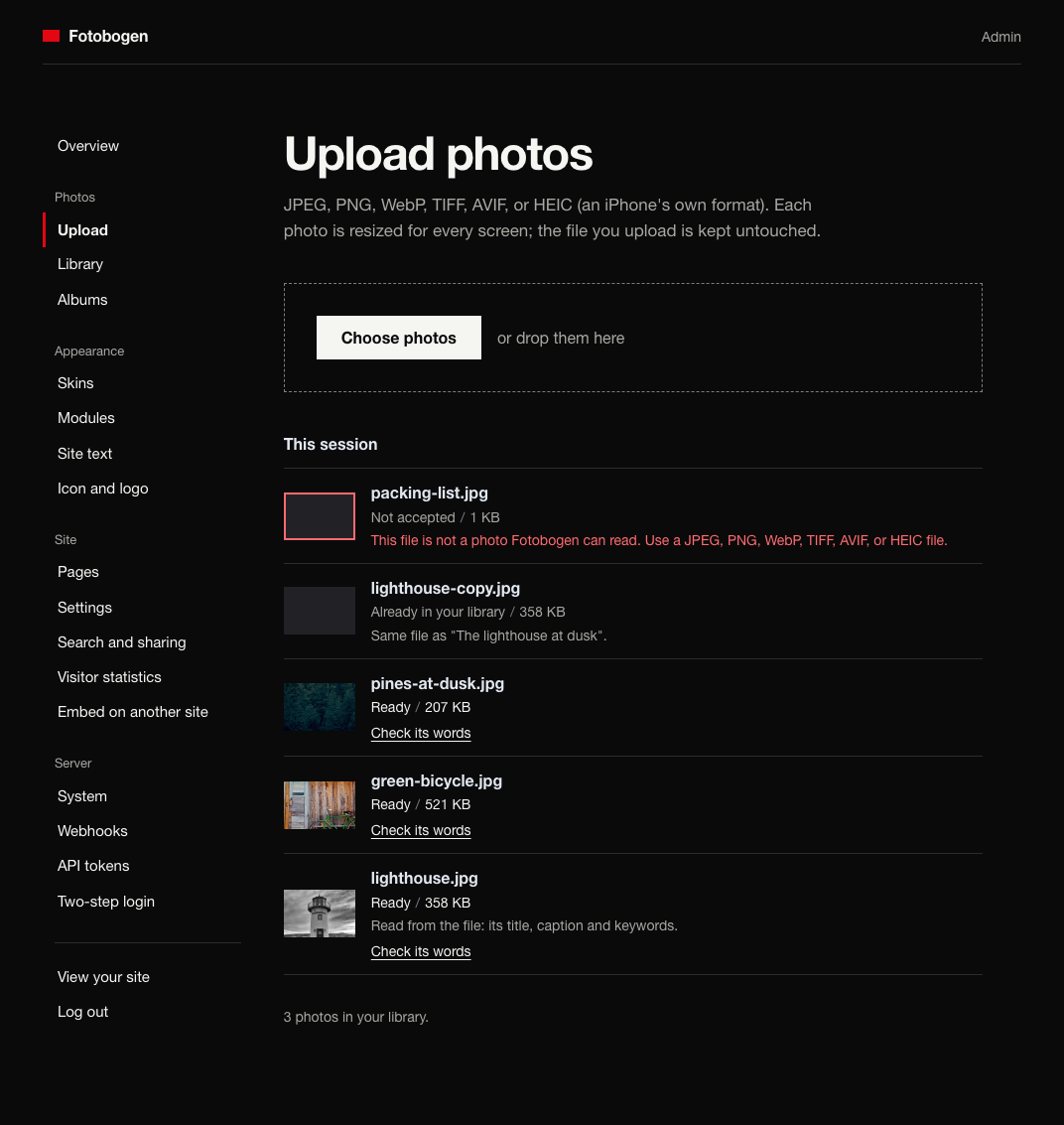
- Formats: JPEG, PNG, WebP, TIFF, AVIF, and HEIC (the format an iPhone saves in). A file is judged by what is inside it, not by its name.
- Size: up to 50 MB and 100 megapixels each. AVIF is held to 16 megapixels, HEIC to 25, WebP to 60, and interlaced PNG to 40, because those need far more memory to open. A larger one is refused with a note to upload a JPEG instead. An iPhone's usual photos are 12 or 24 megapixels; its 48-megapixel setting is over the limit.
- Duplicates: the same file is not stored twice. The page names the photo that already has it.
- Your file is kept untouched. Fotobogen makes resized copies for the web (up to 2560 pixels on the long side) and never enlarges anything.
- Processing happens one photo at a time in the background, so you can keep uploading. A photo that cannot be processed after three tries is marked failed, with the reason and a Try again button, here and on the photo's own page in the library.
Once processed, a photo is on your site, unless you have set new uploads to start as drafts.
The words that come with a photo
Lightroom, Capture One, Apple Photos and most other programs save a photo's title, caption and keywords inside the file when they export it. Fotobogen reads them when the file arrives:
- the title becomes the photo's title, and its web address;
- the caption becomes its description;
- the keywords become its tags;
- the alt text becomes its alt text, where the program wrote one.
The upload page says what it read from each file, with a link to check it. Everything can be changed afterwards. If your files carry notes or keywords that are not meant for visitors, switch this off under Settings, New uploads. A description a camera writes by itself, such as "OLYMPUS DIGITAL CAMERA", is ignored. From a HEIC only its camera details are read, and a description if the camera data holds one; not a title or keywords.
Every photo has alt text
Alt text is what a screen reader says in place of the picture. A photo that arrives with none is given a start, so that none goes out silent:
- its title, if it has one;
- or its file's name turned into words, when a person chose the name:
green-bicycle.jpgbecomes "Green bicycle"; - or, for a name a camera gave, such as
IMG_0042.jpg: "Photograph taken on 1 June 2024".
Fotobogen does not look at the picture, so this is a start and not a description. Such photos are flagged Alt text to check in the library until you rewrite the text, or say on the photo's page that it is right as it is. Alt text can be changed but not emptied.
A whole folder at once
On the server, in Fotobogen's folder, with the site running:
pnpm fotobogen import ~/Pictures/export
pnpm fotobogen import ~/Pictures/export --albums
pnpm fotobogen import ~/Pictures/export --album "Iceland 2023"- The first takes every photo in the folder and in the folders inside it.
--albumsalso makes an album of each folder directly inside it, named after the folder.--albumputs everything in one album, made if it is not there.
The photos go in exactly as uploads from the admin do, so the same rules apply, the words inside each file are read, and new photos are drafts or public as your settings say. What is already in the library is skipped, so the command can be run again after an interruption. It ends by listing any file it could not take, with the reason. Import only a folder that is yours: everything in it is published, and with --albums the names of its folders become albums.
In Docker the folder has to be one the container can see, such as a folder inside the data directory: docker compose exec app node scripts/fotobogen.mjs import /data/inbox. If the site is not on port 5150, add --url http://127.0.0.1:5160 with its port. The command only talks to a site on the same machine.
The library
Library shows every photograph. The first one there is the first on your site.
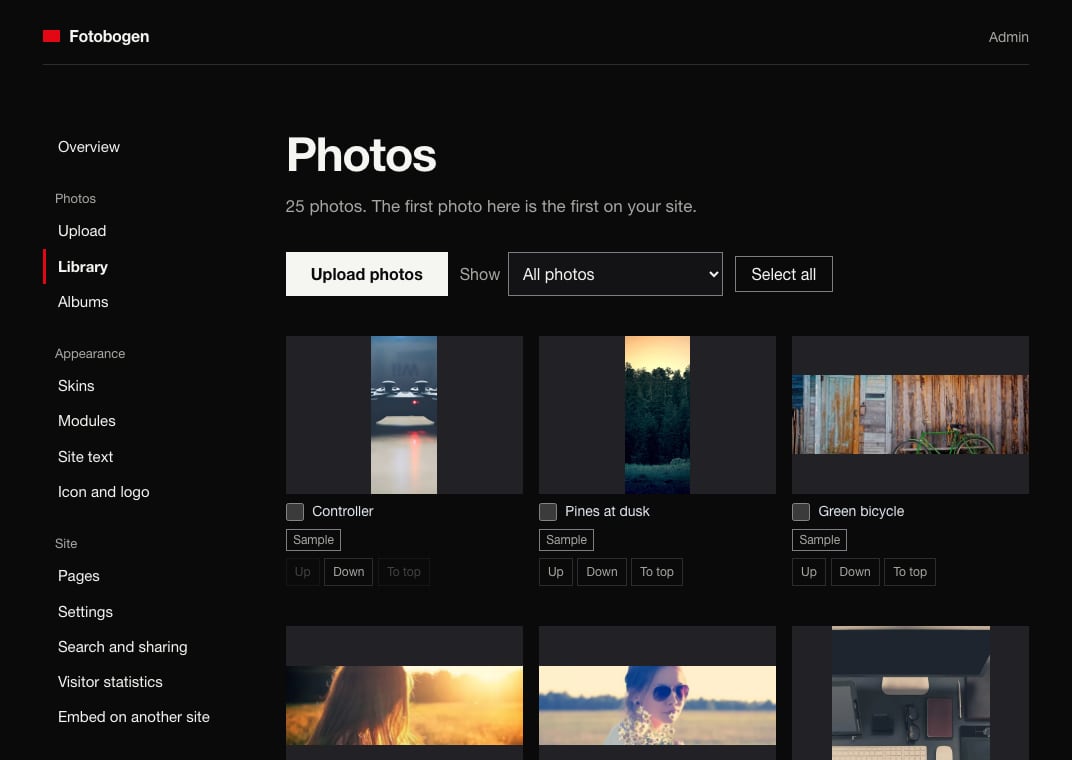
- Order: drag a photo onto another to put it in front, or use its Up, Down, and To top buttons.
- Several at once: tick photos, then Hide, Show, Delete, add to an album, or add a tag. Delete moves them to the trash without asking, because it can be undone.
- Find: show only hidden photos, scheduled photos, photos whose alt text is still to be checked, or photos that failed.
Editing a photo
Open a photo from the library to change:
- its title and description;
- its alt text, which describes the picture to people who cannot see it. Screen readers read it aloud. Every photo has one: where Fotobogen wrote it itself, the page says so and asks you to improve it;
- its web address (the last part of
/photo/…) and the date taken; - its albums and tags;
- when it is published, its licence, and whether it can be downloaded;
- its look: a strip of small previews under the photo shows what each switched-on module would do. Choosing one shows a larger preview, and nothing changes until you save.
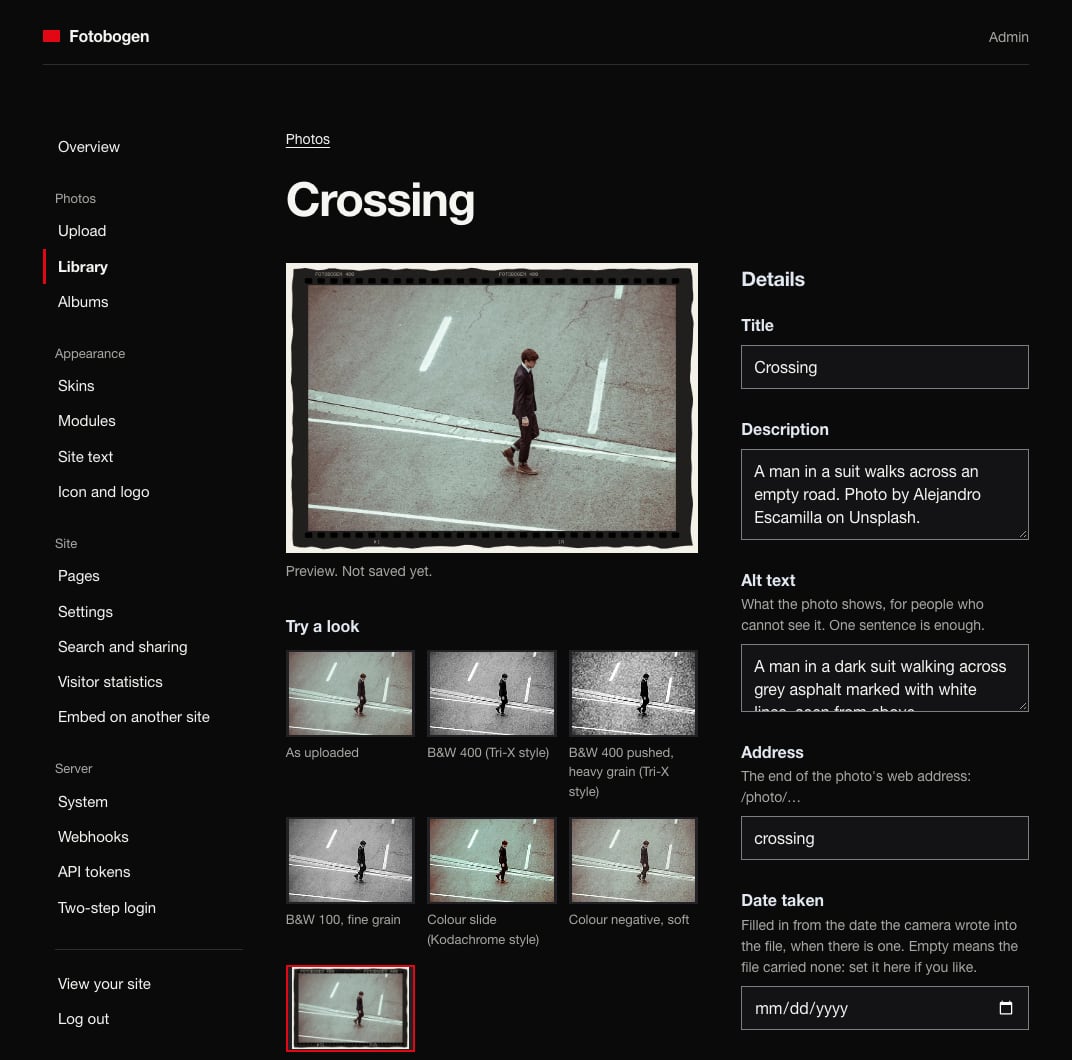
Beside the form is what the camera recorded in the file: camera, lens, exposure, and place.
Links to a photo
Further down the same page is a Links panel: the full address of the photo's page, the address of each size of the picture, and a line of HTML that shows the photo linked to its page. Each has a Copy button. Use them in an email, a post, or another website.
The pictures are public files: anyone with a picture's address can open it, with no login, and any website can show it. Nothing needs setting up for that (no CORS configuration); Fotobogen tells browsers that other sites may read its photos. Nothing checks who asks for a picture, either: its address has a long name that cannot be guessed, and keeps working for anyone who has it, even after the photo is hidden, until the photo is deleted or rendered again. The links begin with your site's address. On your own machine they begin with http://localhost:5150, which works only there, until you set the address under Admin, Search and sharing or as SITE_URL on the server.
Deleting, and the trash
Deleting a photo, from the library or from its own page, moves it to the trash. It is off your site at once: the grid, its page, its albums, the feed. It is kept for 30 days, with the file you uploaded, and then removed for good.
In the library, choose Show, Trash to see what is there and the day each photo will go. Tick photos and press:
- Restore, to put them back as they were: the same address, albums, tags, and place in the order. A restored photo is made again from the file you uploaded, so it takes a moment to reappear.
- Delete for good, to remove them now. This asks first, and cannot be undone: the uploaded file and every resized copy are deleted.
Two things to know. Uploading a file that is in the trash is refused, with a note saying where it is: restore it, or delete it for good first. And while a photo is in the trash its picture files still exist, so someone who already has a picture's own address can still open it; to withdraw those addresses, delete the photo for good.
Publishing, scheduling, and drafts
On a photo's page, Publish has three choices:
- Public: shown on your site now.
- Scheduled: public from a date and time you pick, in your own time zone. Until then the photo is in your library but not on the site, the feed, or the sitemap. It appears by itself when the time comes.
- Hidden: a draft, kept in your library and not on your site. (Nobody sees it at its address, you included; look at it in the admin.)
In Settings you can make every new upload start as a draft, so nothing is public until you say so.
Albums and tags
- Albums are named sets you arrange yourself. Create them under Admin, Albums; add photos from the library (tick photos, choose an album, Add to album) or from a photo's page. A photo can be in several. Each public album has a page at
/album/…, and they are listed at/albums. An album can be hidden. Deleting an album never deletes its photos. - Tags are short labels typed on a photo's page, separated by commas, or added to several photos at once from the library. Each has a page at
/tag/…. A tag exists only while a photo carries it.
Albums on the front page
Each album has a switch, Offer it on the front page (Admin, Albums, Edit). The albums switched on appear as a row of names over the photos on your front page: All, then each album. A visitor who chooses one sees that album alone, in its own order; All brings everything back. A new album is offered there unless you switch it off. With none switched on there is no row. Only a public album with photos in it is offered.
The order of the front page is under Admin, Settings: shuffled, a new order for each visit, or the order of your library. A new site starts shuffled; a site set up before version 1.8.0 keeps the order of its library until you change it.
Private albums
An album can be private: for a client, a family, a few friends. Under Admin, Albums, edit the album and choose Private. It gets a link that cannot be guessed, shown in the album's entry with a Copy button. Send that link to the people who may see the album.
- Whoever has the link sees the album, and each photo in it, with no login. Nobody else does: it is not on the albums page, in the menu, in search, in the feed, or in the sitemap.
- It can hold hidden photos, which stay off your site. The usual way: upload, hide the photos, add them to the album, make it private, send the link. To have every upload start hidden, switch that on in Settings.
- Make a new link replaces the link at once, and the old one stops working for everyone who has it. Making the album public or hidden ends the link too.
- A link is only as private as the people who hold it: anyone can pass it on. Fotobogen tells search engines to keep away, never lets a browser or proxy store the pages, does not send the link on to other sites, and puts no counting script on these pages.
- A private album has no slideshow and offers no downloads, and its photos show no tags, other albums, or location.
What visitors see
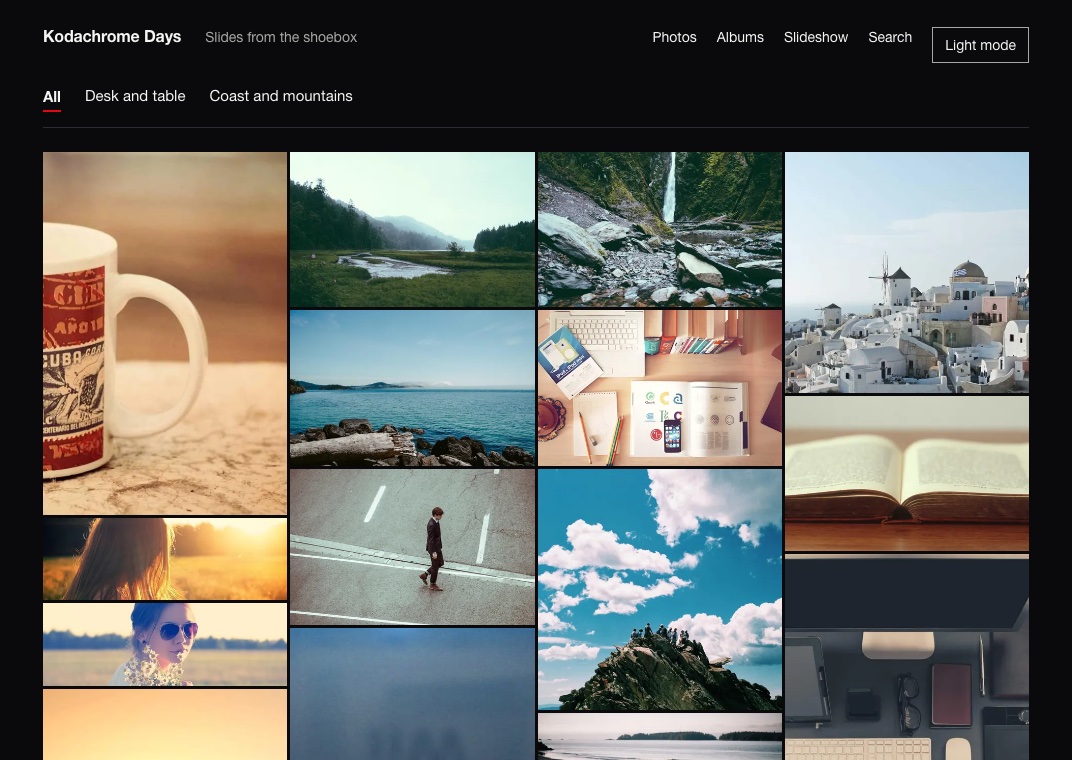
- The grid, at your address: photos shuffled afresh for each visit, or in your library's order (you choose in Settings), thirty to a page, each keeping its shape or all cut square. It works with JavaScript switched off, and nothing jumps as images arrive.
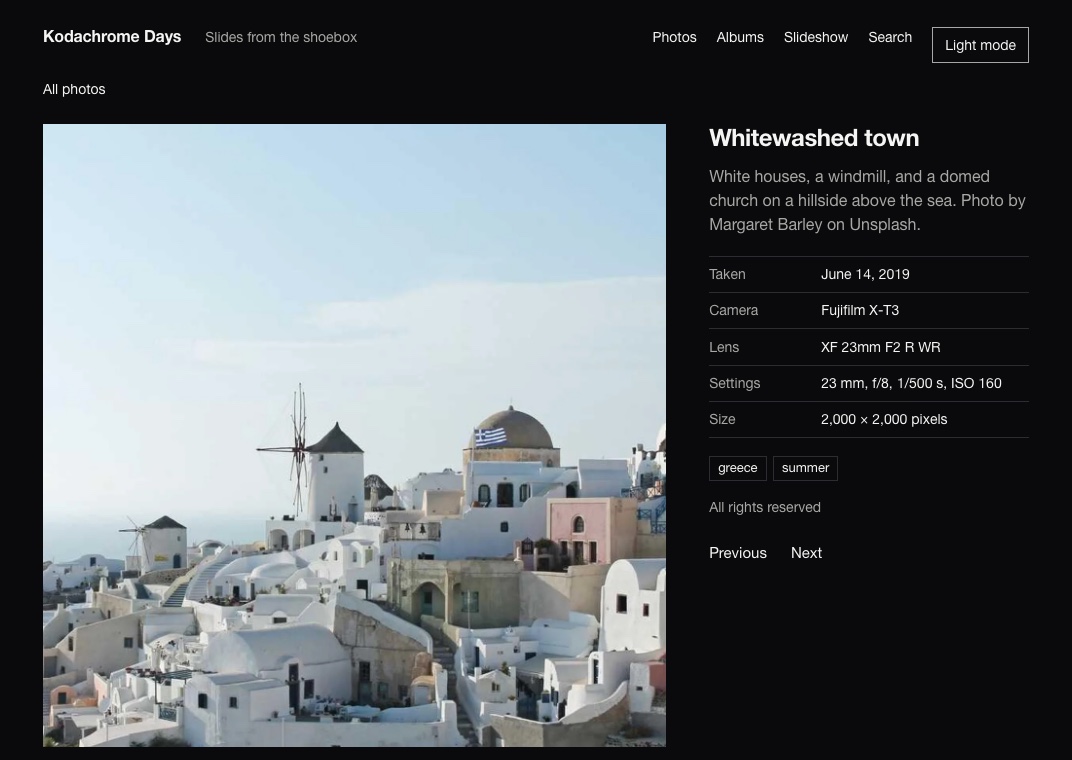
- A photo: the picture, its title, description, date, camera details, and size in pixels, with previous and next: links, the arrow keys, and on a phone a swipe across the photo. It opens over the grid or on a page of its own, as you chose. A Full screen button appears over the photo when you point at it, and a click on the photo does the same; Escape leaves it. Photos with no camera data, such as the samples, show only their size.
- Albums and tags, each with its own page. Albums you switch on for the front page appear there as a row of names; choosing one shows that album alone.
- Search, from a link in the menu: it looks in titles, descriptions, alt text, tags, and the names of public albums, for up to six words, and finds only what a visitor can already see.
- Your own pages and links in the menu, if you have made any under Admin, Pages.
- The slideshow, at
/slideshow: full screen, one photo after another, for the whole site or one album or tag. Pressing a photo holds it and shows what its own page lists: title, description, date taken, camera and exposure, size, albums, tags, and licence. It never shows where a photo was taken. Space pauses, the arrow keys step, F is full screen, Escape leaves. Seconds per photo and the order are in Settings. - A light and dark switch at the top. More about that.
- An RSS feed at
/feed.xml, a sitemap for search engines, and a preview card when a photo's address is shared.
Only photos that are processed and public are ever shown. Where a photo was taken is never shown unless you switch that on.
Settings
Admin, Settings holds:
- the site title and tagline;
- the grid (photos keeping their shape, or squares) and whether a photo opens over the grid or on its own page;
- privacy: show camera details (on to begin with) and show where photos were taken (off to begin with);
- the licence your photos are published under: all rights reserved, or one of the Creative Commons licences. It is shown on every photo page, and a photo can have its own;
- downloads: whether visitors may download photos (off to begin with). A download is a large copy with all camera data removed. The file exactly as you uploaded it is handed out only by a site that also shows where photos were taken, because that file carries everything the camera recorded;
- new uploads start as drafts;
- picture quality: Smaller files, Standard, or High. This is how much the copies shown on your site are compressed. Changing it makes every photo's copies again in the background;
- the order of the photos on your front page: shuffled for each visit, or the library's order. A new site starts shuffled;
- the slideshow's timing and order.
Making the site your own
Nothing a visitor sees has to say "Fotobogen". It is your site, at your address, under your name.
Site text
Admin, Site text holds the site's title and tagline, and every fixed piece of text on the public pages: the links at the top, the buttons, the labels beside a photo, the slideshow's controls, and what is shown when a page cannot be found. Each field shows the wording used now. Type your own to replace it; leave it empty to keep the default.
- There is a line of your own for the footer, empty to begin with: a copyright notice, for instance.
- Language is a code such as
en,de, orpt-BR. It tells screen readers how to pronounce your site and search engines what language it is in. It does not translate anything; you do that by rewording the fields. - One button puts every field back to its default.
Search and sharing
Admin, Search and sharing decides what search engines show for your site and what appears when someone shares a link to it. Every field is optional, and the page previews the result as you type.
| Setting | If you leave it alone |
|---|---|
| Title of your home page | Your site's title |
| Description of your site | Your tagline |
| How the titles of other pages are written | "Photo | Site" |
| Picture shown when your site is shared | Your newest photo |
| Let search engines list this site | Yes |
| Your site's proper address | The address each visitor used |
| Photographer's name, and username on X | None |
| Google and Bing verification codes | None |
A link to one photo always shows that photo, with its own title, description, and alt text. Asking search engines not to list the site is a request the well-known ones honour; it does not make the site private.
How it looks
Skins change the look, the colours, and light or dark.
Sample photos
Fotobogen can download 25 photographs so that a new site has something to show. They come from Lorem Picsum (Unsplash photographs, credited to their photographers) and are not part of the software. Overview has Download sample photos (Download the rest when some are already there), and Remove sample photos deletes all of them, and only them, for good (not to the trash). The samples arrive in two sample albums, "Coast and mountains" and "Desk and table", so you can see how albums work; removing the samples removes those albums too if nothing else is in them, and deleting an album never deletes its photos.
Backups and updates
Admin, System shows the version, what is stored, and the free space, and has Download a backup, restore, and Check for updates. When a newer release is found, a note on every admin page says so, and the System page can install it for you. Take a backup regularly and keep it somewhere other than the server. Backing up and restoring are covered with the questions.
Uploading from a script or another program
Under API tokens, make a token of the Upload only kind and copy it. A program then sends it with each request, in place of logging in. From a terminal:
curl -H "Authorization: Bearer fb_YOUR_TOKEN" \
     -F "file=@photo.jpg" \
     https://photos.example.com/api/admin/photos
The answer says whether the photo was accepted, and its id. To upload a whole folder:
for photo in *.jpg; do
  curl -sS -H "Authorization: Bearer fb_YOUR_TOKEN" -F "file=@$photo" \
       https://photos.example.com/api/admin/photos
  echo
done- The same limits apply as in the browser: format, size, and no duplicates.
- Use HTTPS. Over plain HTTP the token can be read on the way.
- Treat a token like a password, give each program its own, and revoke one that is no longer needed. The page shows when each was last used.
- A token is for the API only. It does not open the admin's pages, and it cannot change settings or reach your backups.
Keyboard and accessibility
The admin and the public site are built to WCAG 2.2 level AA and are tested for it on every change: everything can be reached and worked from the keyboard, text has a contrast of at least 4.5 to 1 in light and dark, and nothing scrolls sideways on a phone. Motion is reduced when your device asks for that. If you find something that does not meet this, it is a bug: please report it.